
Use a phone as an OBS webcam source without a native phone app or a media relay.
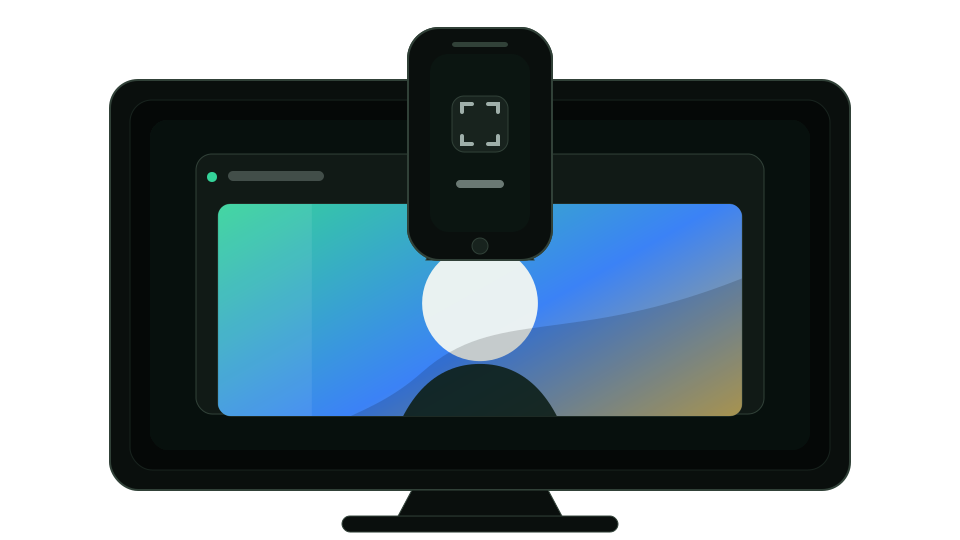
The phone opens a browser camera page. The computer opens a receiver page, or the clean OBS page in an OBS Browser Source. OBS Virtual Camera can then expose that source to video-call apps.
- Open
/in a normal desktop browser. - Add a new Browser Source in OBS.
- Copy the OBS URL from the receiver page into the Browser Source URL field.
- Set the Browser Source size to the OBS canvas size you want, for example
1920x1080for Full HD or3840x2160for 4K. - Scan the QR code with the phone and allow camera access.
- Once OBS is connected, the normal receiver page will say that OBS is handling the camera stream. You can close that receiver page; keep the phone page and OBS Browser Source open.
- Start OBS Virtual Camera and select it as the webcam in your video-call app.
The /obs page renders only the incoming video. It does not show controls, debug UI, QR codes, or links, so it is safe to capture directly in OBS.
- Stream phone camera video to a computer with WebRTC.
- Keep media local and peer-to-peer over the LAN or USB-tethered network.
- Use Cloudflare Workers only for hosting, room creation, and WebRTC signaling.
- Provide an OBS-friendly
/obsmode that renders only the video. - Show actual camera and receiver properties instead of assuming fixed limits.
- Make direct-path verification visible through ICE candidate and WebRTC stats.
- Fail rather than use STUN, TURN, a relay, SFU, media server, Cloudflare Realtime, or Cloudflare Stream.
- No native iOS or Android app.
- No DroidCam, Iriun, Camo, or other webcam app dependency.
- No multi-viewer broadcast mode.
- No remote internet streaming of camera media.
- No fallback to relay infrastructure when direct local WebRTC cannot connect.
Create a local .env with a private signing secret:
printf 'ROOM_SIGNING_SECRET=%s\n' "$(openssl rand -base64 32)" > .envpnpm run build
pnpm run devOpen:
/on the computer to create a room, show the phone QR code, and preview the stream while OBS is absent./camera?room=...on the phone browser./obs?room=...in OBS Browser Source for the clean video-only receiver. When OBS connects, it becomes the active receiver without requiring the/page to close.
For deployment, configure the same required secret in Cloudflare before deploying:
pnpm exec wrangler secret put ROOM_SIGNING_SECRET
pnpm exec wrangler deploypnpm run check
pnpm run lint
pnpm run format
pnpm run format:check