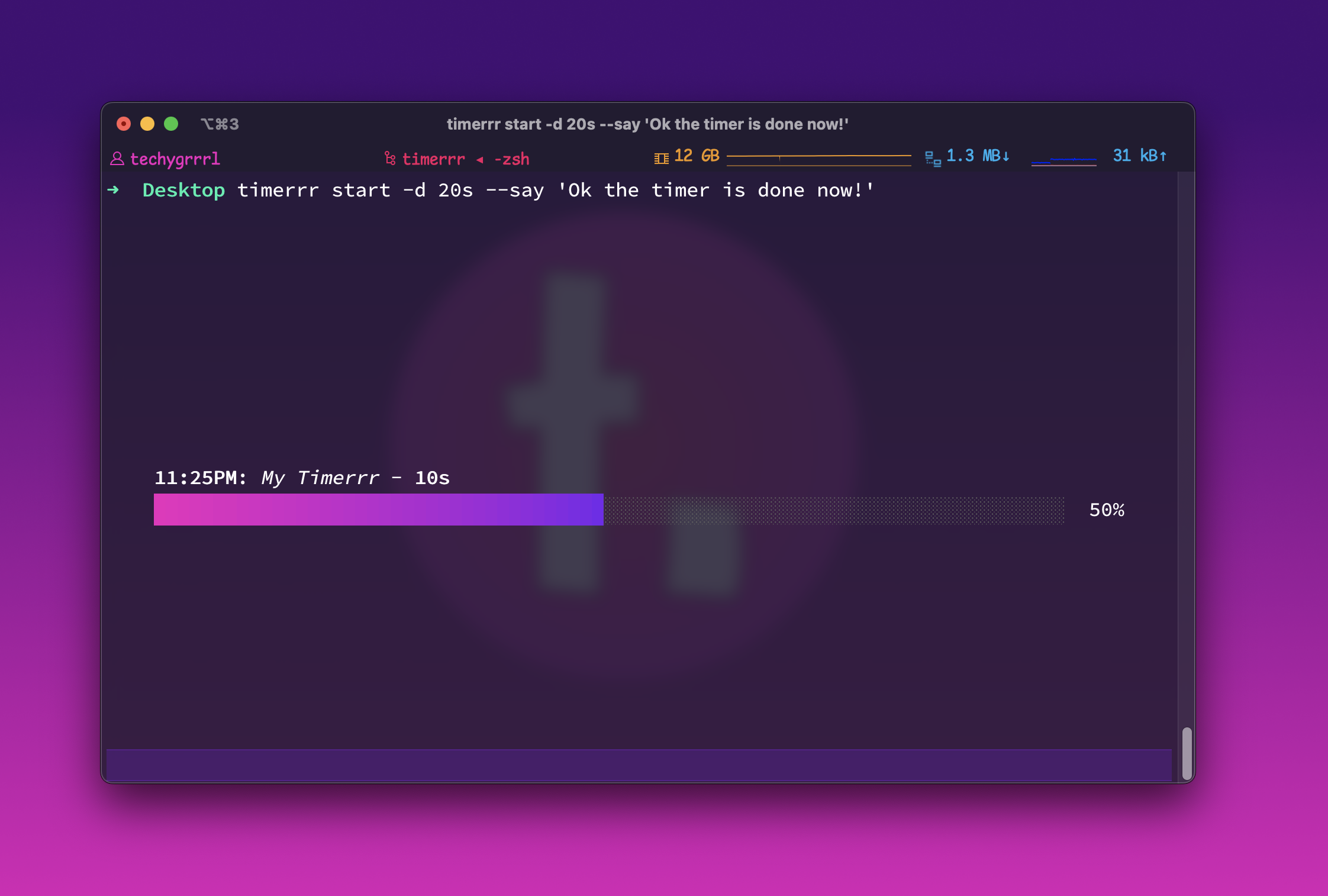
Installation and Usage
Install it with the following command:
go install github.com/techygrrrl/timerrr@latest
Or a specific version:
go install github.com/techygrrrl/[email protected]
You can see all available versions here.
To update to a new version of timerrr, uninstall the current version and reinstall a new version.
timerrr help
Usage:
  timerrr [flags]
  timerrr [command]

Available Commands:
  add         Add a new timer
  help        Help about any command
  start       Start a timerrr!

Flags:
  -h, --help   help for timerrr

Use "timerrr [command] --help" for more information about a command.
The root command timerrr will display a table view. This is to choose a timer that has already been made. To create a new one, see add.

Add a timer with timerrr add.
timerrr add --help
Add a new timer

Usage:
  timerrr add [flags]

Flags:
  -h, --help   help for add
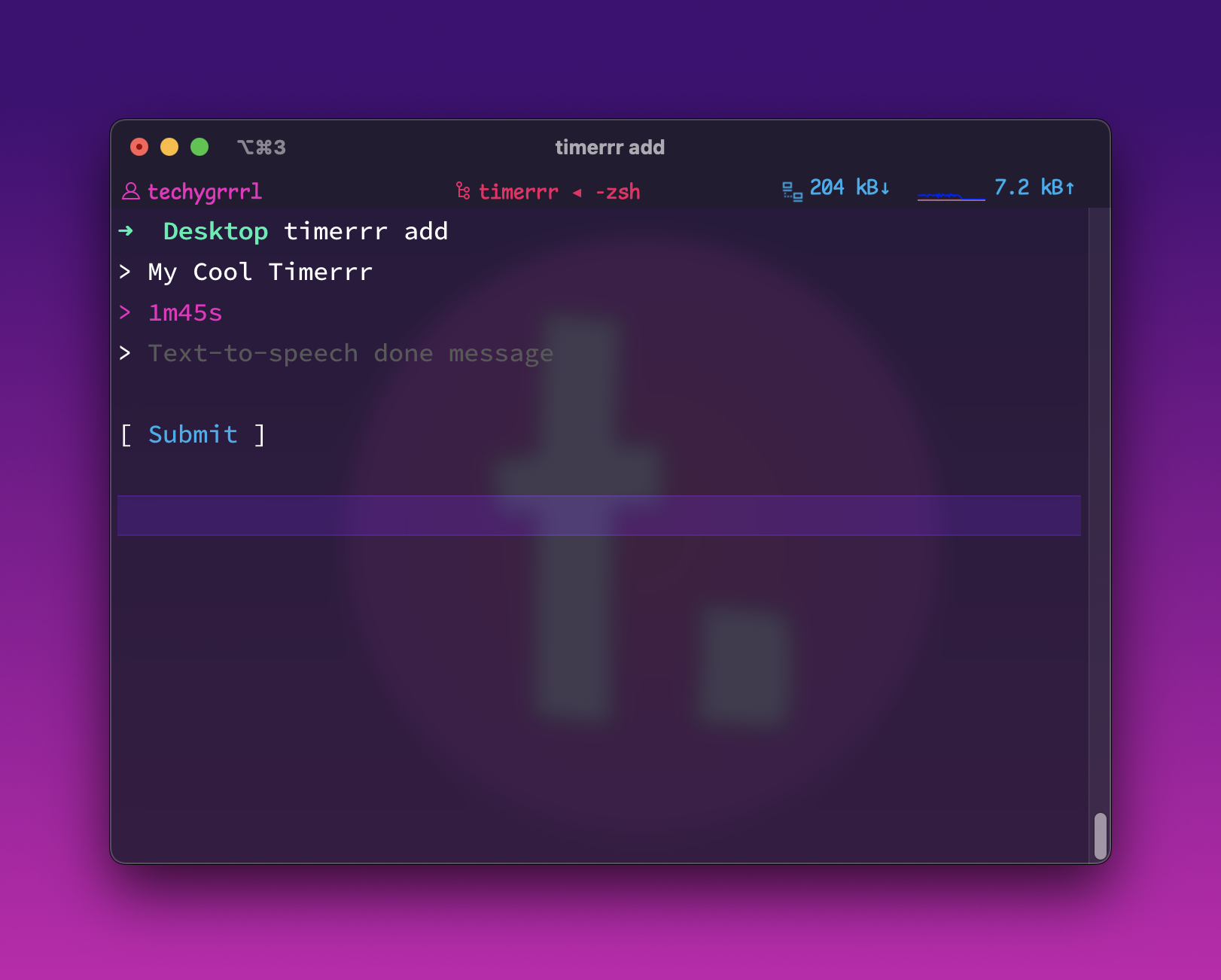
The start command is for starting a one-off timerrr without saving it.
timerrr start --help
You can start a timer with the flag -d 2m30s to start a timer for 2 minutes and 30 seconds. Add options --name and --say to name your timerrr and speak a message aloud with TTS.

If both are omitted, a 30 second timer will be started.

Usage:
  timerrr start [flags]

Flags:
  -d, --duration duration   Duration to run the timer (default 30s)
  -h, --help                help for start
  -n, --name string         Message to speak after completed (default "My Timerrr")
      --say string          Message to speak after completed