Installing a licensed edition requires two parts
- The properly placed license file
- Installing/upgrading the licensed code.
When you have performed all parts correctly, running choco will produce a message like
Chocolatey v0.10.3 Professional / Chocolatey v0.10.3 Business
Here's the whole process for installing your license and installing the licensed code.
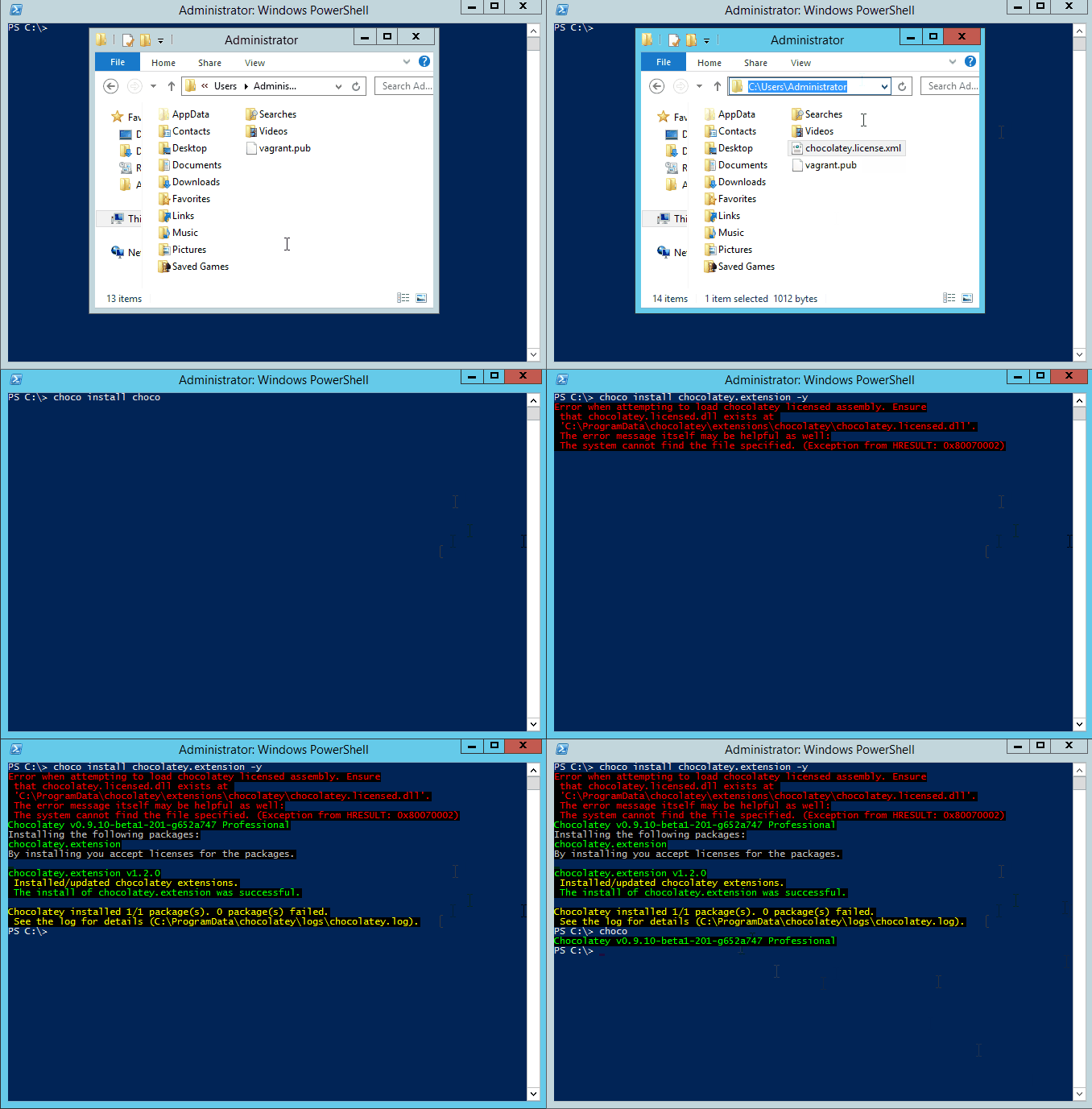
- Install a recent version of Chocolatey (0.9.10+) -
choco upgrade chocolatey. - You received a license file in email.
- Take that license file and copy it to your Chocolatey install folder
licensesubdirectory (you may need to create it first). For most folks that path would be"C:\ProgramData\chocolatey\license". Alternatively, you can put the license in your user profile directory, e.g."C:\Users\YourUserName\chocolatey.license.xml"

- Run this command:
choco upgrade chocolatey.extension(or you can callinstallinstead ofupgrade). You will see an error you can safely ignore.

- That's it! You are good to go.
If you've received a trial license, you will also receive a link to download a recent version of the chocolatey.extension package. You will not be able to install or upgrade the licensed edition through regular means. Chocolatey may add the licensed source, but your license will not be recognized on the server.
- Follow all of the instructions above except the
choco upgrade chocolatey.extensioncommand, that will not work with the trial license as the license will not be recognized by the licensed source. - Instead download the
chocolatey.extension(licensed package) from the provided download link location and remember where you saved it. - Now run this command:
choco upgrade chocolatey.extension --pre --source c:\folder\where\downloaded\nupkg\resides(or you can useinstallinstead ofupgrade). Note: Source location is not--source c:\downloads\chocolatey.extension.1.8.1.nupkg, it is--source c:\downloads.