This file is meant to be a more detailed introduction to what TourGuide is and what kind of features TourGuide has.
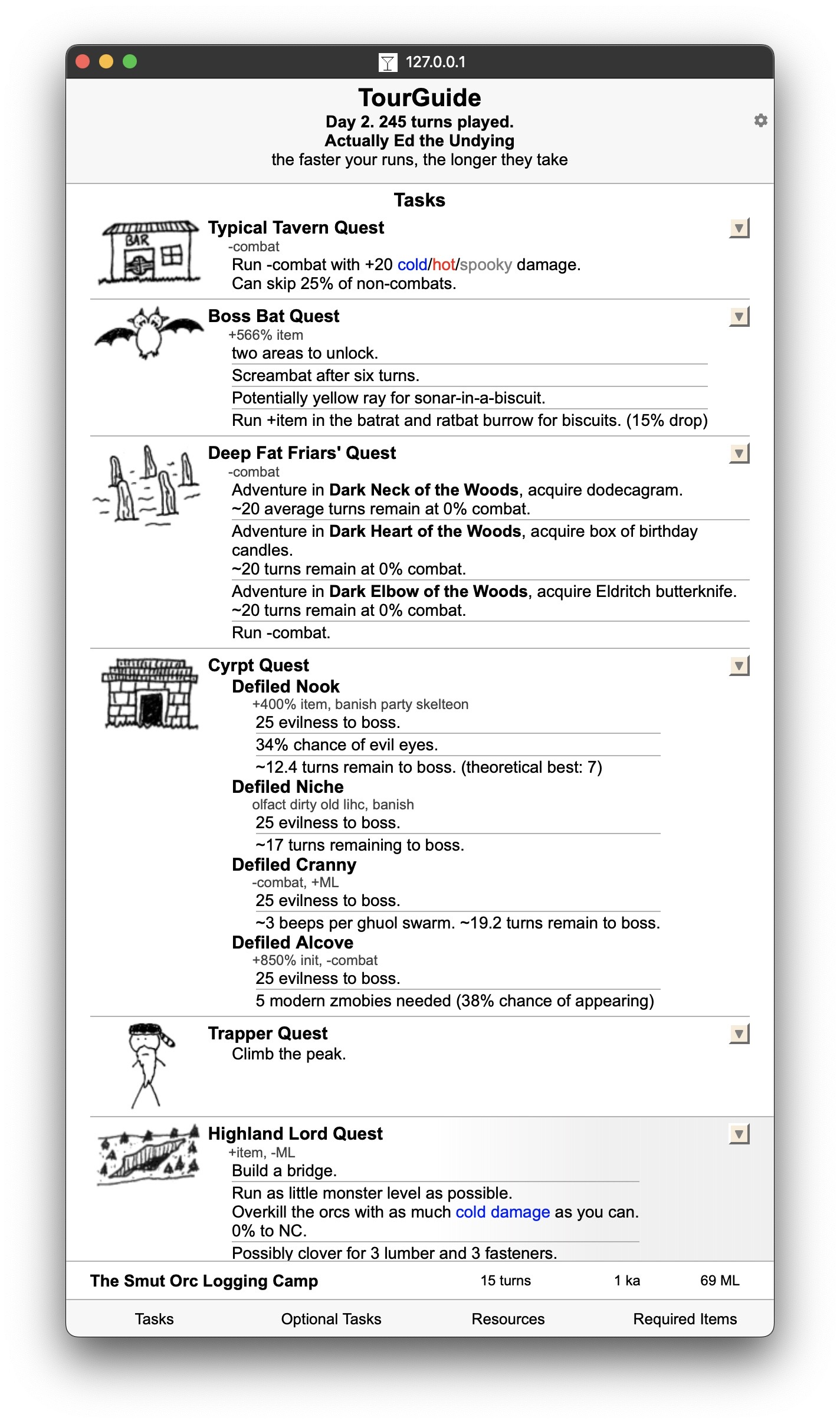
The easiest way to explain what TourGuide does is to show screenshots. To start, this is a view of what TourGuide looks like on initial run, for a user who is midway through a run.
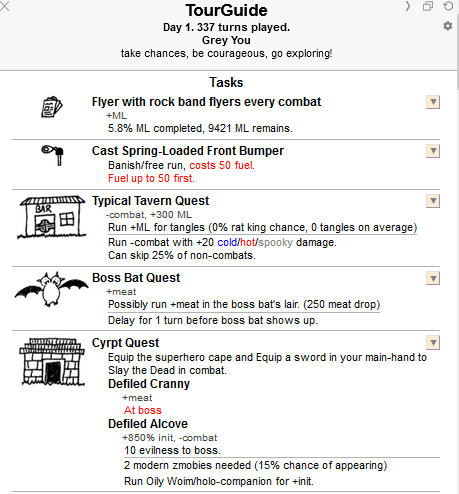
At the top, TourGuide will tell you how many turns you've played in your ascension -- this helps speedrunners tell how they're doing on broader turncount relative to their overarching turncount goal. Underneath, it will start out by telling you your Tasks, which is the language TourGuide uses to represent things the user needs to do, most prominently main game quests -- as seen in the screenshot, things like the Boss Bat Quest, Knob Goblin Quest, Highland Lord Quest, etc.
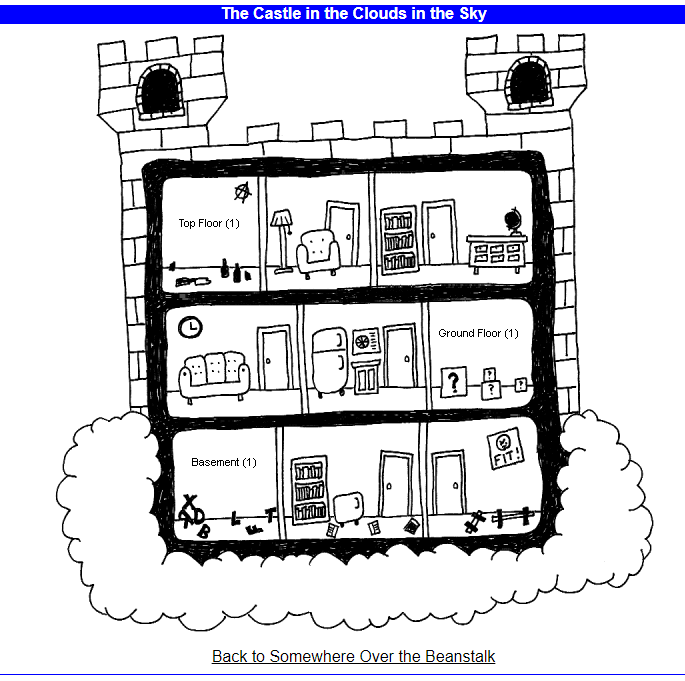
Each quest is associated with a tile. The tile changes as the user proceeds on the quest, giving different advice for different stages in the respective quest. Note that the Boss Bat Tile here describes a state where the user is 1 turn of delay away from the Boss Bat being eligible for inclusion in the monster pool in the Boss Bat Chamber. If the user had not yet unlocked the Boss Bat Chamber, the tile would instead show information advising the user to get Sonar-in-a-Biscuit items or adventure to find Screambats. If you were to click on the task tile, TourGuide will try to send you to the container zone where the quest is set -- for instance, if we were to click on Castle quest, we'd get this in our main window:
Directly below tasks, TourGuide reports Optional Tasks -- these are tasks that are (surprise!) very optional. Tracked tasks like your nemesis quest will live here, tasks that are not required at the present time and in many cases not required for ascension at all. Sometimes, tasks that will eventually be required but are not yet required (like burning delay in Spookyraven's Haunted Ballroom) will also appear here.
Below tasks & optional tasks, there are Resources, tracking the myriad resources users have at their disposal during an ascension. Things like free kills, banishes, buffs, et cetera.
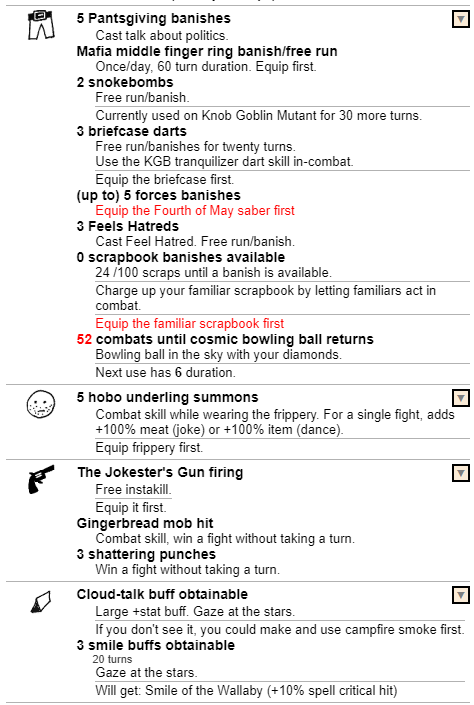
These can get very, very large in unrestricted paths, as seen in the banish tile (headlined by Snokebombs and the Middle Finger Ring). There are often significant resources that go either unused or virtually unable-to-be-used in unrestricted. But in Standard paths, this tends to be a great end-of-day reminder zone -- if you're getting close to the end of your day, it's a good idea to scroll down to resources and ensure that you've used everything that's available in some way or another.
When relevant, Resource tiles will link to the relevant container zone (for example, the cloud-talk buff tile will link to your Getaway Campsite). More often, they will link to either the skills page (if the Resource is a skill), your equipment page (if you need to equip something to make that resource work), or your terrarium (if the resource is a familiar that needs to be equipped).
One thing that's important to call out is the alert system. TourGuide is coded such that it tries to explicitly alert you when there are time-dependent tasks that are imminently available. Alerts will float at the top of the sidebar, ensuring they don't go away even if you are scrolled down and examining a tile lower in the sidebar. Alerts will look like this:
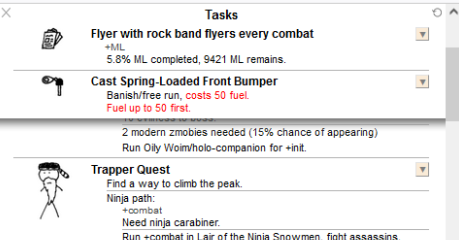
Things that TourGuide tries to alert the user of are too varied to fully account. Here are some examples:
- If a digitized monster will show up in your next adventure
- If you have a Cold Medicine Cabinet consultation available
- If you have an Asdon Martin banish available right now (as seen above)
- If you have a Cleaver NC ready to go on your next adventure
Finally, there's the bottom bar of TourGuide. This includes links that will take you to the top item in each of the previously described tile zones (Tasks, Optional Tasks, and Resources). It also includes something even more useful -- a zone summary.
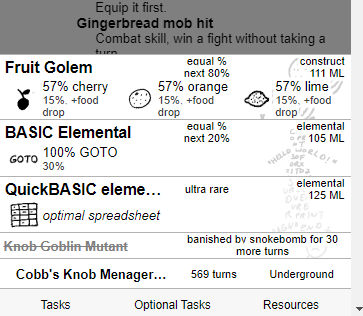
When you aren't hovering over the summary, it will show you the bottom part of that screenshot: the name of the zone, the environment of the zone (Underground, Indoors, Outdoors, etc) and the number of turns you've spent in the zone (including freeruns and delay you've burned there). This is useful for delay burn tracking and complaining about how long a task is taking during your ascension, one of the most important parts of KOL. When you hover over the summary, it will show you the monsters within the zone, the phylum of the given monsters, their respective item drop tables, and the projected probability that you will encounter any given monster in the zone on your incoming turn, based on KoLMafia's calculation of rejection probability and the current banishes. It will also show you which monsters in the zone are banished, ultra rares that exist within the zone, and the drop rate of items on monsters in the zone in their drop tables. Here, when it says "100%" for the GOTO item, that means that my item drop % is high enough that I can cap a 30% drop; I will get it every time I fight a BASIC Elemental.
There are a lot of tiles in TourGuide. Like, a LOT of tiles. On fully-decked-out accounts, you can get all the way to 200-300 tiles, which is an absolutely absurd amount of information. To try and help manage this, TourGuide has a tile minimization feature. To minimize the tiles, click the arrow in the top right hand corner of any given tile.
That will turn this:
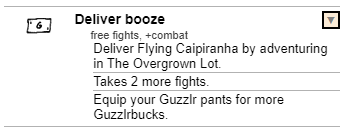
Into this:

You can do this with, again, -every- tile. You can even set default values for it! If you right-click the arrow, you will get the following menu:
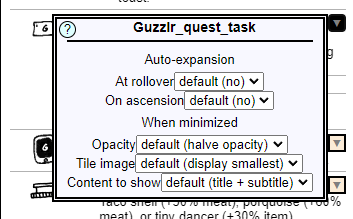
Here, if there are certain tiles you want to permanently hide, you can set "Auto-Expansion" to "no" on the tile in question; TourGuide will store this in your LocalStorage, keeping the tile minimized over rollover and ascension if you choose to do so. You can also make the minimized tiles even smaller -- if you select "Don't Display" for tile image and "Replace all with tile ID" for content to show, the tile will minimize even further; instead of the default minimization above, it could look like this:

Many people like using the KoL Chat while ascending. TourGuide supports generating two sidebars, so you can access in-game chat while you're using TourGuide. To access this, click the left-facing arrow at the top of TourGuide (which has the alt-text "Show Chat Pane".)

Alternatively, you can also pop TourGuide out into its own window, using the double-square box next to the described arrow.