
This page will help you to get up to speed with InstaLOD for Autodesk Maya SDK 2.
[[MORE]]
InstaLOD for Autodesk Maya and Maya LT enables you to optimize 3D meshes without having to leave your favorite DCC tool. The integration features a graphical user interface, supports complex batch operations and can be scripted with its mel scripting based API. Great care has been taken to ensure a high degree of usability and productivity even when using InstaLOD for Autodesk Maya for the first time.
Please refer to the InstaLODCmd SDK2 documentation for an overview of all features.
Teams using InstaLOD SDK 2 Update 2 have the option of getting a private instruction session via Skype video. Please get in touch with us to schedule your session.

- Compatibility
- Prerequisites
- Installing InstaLOD for Maya and Maya LT
- Getting started with Autodesk Maya LT
- Getting started with Autodesk Maya
- Optimizing a single mesh
- Optimizing multiple meshes
- Creating batch operations
- Exporting settings and batch profiles for InstaLODCmd
- Scripting InstaLOD for Autodesk Maya via Python or MEL
- Known Limitations
- Website
InstaLOD for Autodesk Maya and MayaLT runs on both MacOS and Windows. The following versions of Autodesk Maya are supported: 2014, 2015, 2016 and 2017. The following versions of Autodesk Maya LT are supported: 2016 LT and 2017 LT.
InstaLOD for Autodesk Maya and Maya LT uses InstaLODCmd as backend for optimization operations. InstaLODCmd must be installed before you can start using InstaLOD for Autodesk Maya and Maya LT. Please refer to the InstaLODCmd documentation on how to install InstaLODCmd on your workstation.
InstaLOD for Autodesk Maya supports authorizing licenses and displaying license info from within Maya. Due to limitations in Maya LT, this feature is only available in non-LT versions.
Once you have installed and authorized InstaLODCmd on your workstation unzip the InstaLOD for Maya file distribution. Maya installs third-party plug-ins into a platform specific folder. Installation varies depending on the version of Maya you are using and your operating system.
Copy the InstaLOD_MayaIntegration.mel file to your Maya script folder, normally found at \Users\your-username\Documents\maya\scripts.
Copy the InstaLOD_MayaIntegration.mel file to your Maya script folder, normally found at ~/Library/Preferences/Autodesk/maya/scripts.
Copy the InstaLOD_MayaIntegration.mel file to your Maya script folder, normally found at \Users\your-username\Documents\maya\scripts. Copy the file MayaLT.bat to your InstaLODCmd installation direction.
Copy the InstaLOD_MayaIntegration.mel file to your Maya script folder, normally found at ~/Library/Preferences/Autodesk/maya/scripts. Copy the file MayaLT.app to your InstaLODCmd installation direction.
One of the limitations of Autodesk Maya LT is its inability to launch child processes.
To circumvent this limitation we've extended InstaLODCmd in a way that it can listen for incoming mesh operation requests.
In order to start and prepare InstaLODCmd for use with Autodesk Maya LT you have to double-click the MayaLT.bat (Windows) or MayaLT.app (MacOS) program before you can use InstaLOD from within Maya.
The rest of the workflow is identical to the non LT version and therefore you can follow the regular guide from this point on.
Once the integration's script file is copied to your Maya scripts folder you can start Maya. To open the InstaLOD window, type the following MEL command in the Maya Command Line.
InstaLOD;
If you want to automatically initialize InstaLOD whenever Maya starts. Create a file called userSetup.mel in your Maya script folder. Enter the following MEL command in the newly created file and save it:
InstaLOD_MayaIntegration;
More information on how to run MEL commands whenever Maya starts up is available on the Autodesk website.
If the InstaLOD window has been closed, it can be spawned again by selecting InstaLOD->Open Window... from Maya's main menu.
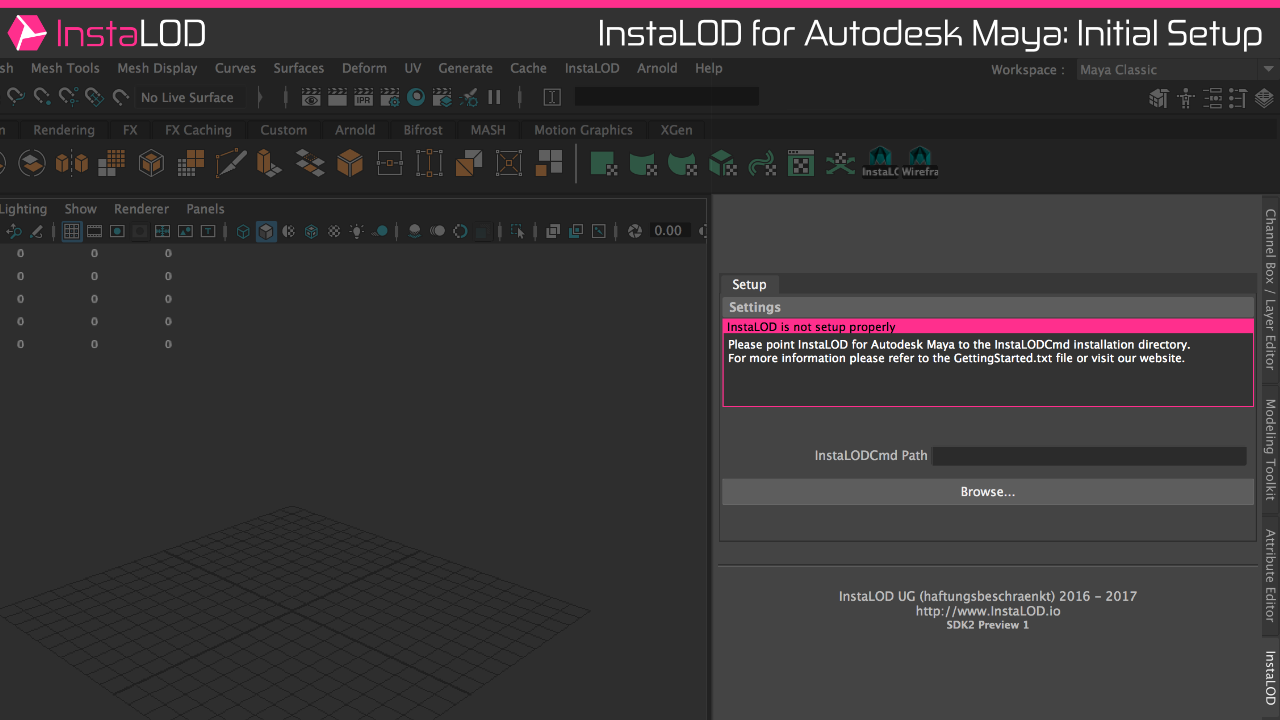
On the first start of InstaLOD, it is necessary to point InstaLOD for Maya to the installation directory of InstaLODCmd.
Click the Browse...-button and browse to the InstaLODCmd installation directory on your workstation.
If InstaLODCmd was found in the specified directory the window contents will change. If your machine has already been authorized for InstaLOD you can start using InstaLOD for Autodesk Maya now. If your machine has not been authorized for InstaLOD yet you can enter your license information in the dialog to authorize your workstation.
Please refer to the InstaLODCmd SDK2 documentation for an overview of all features.
Teams using InstaLOD SDK 2 Update 2 have the option of getting a private instruction session via Skype video. Please get in touch with us to schedule your session.
To optimize a mesh select the mesh in the viewport or hierarchy. Select the Optimize-tab in the InstaLOD window and enter the percentage of triangles for the output mesh in the Percent Triangles text field.
Click the Optimize Selected Meshes button to optimize the mesh. Maya will export the geometry for InstaLOD and start the optimization.
Once the geometry has been exported InstaLOD will execute the mesh operation asynchronously.
Both skeletal and static meshes are supported by InstaLOD for Maya.
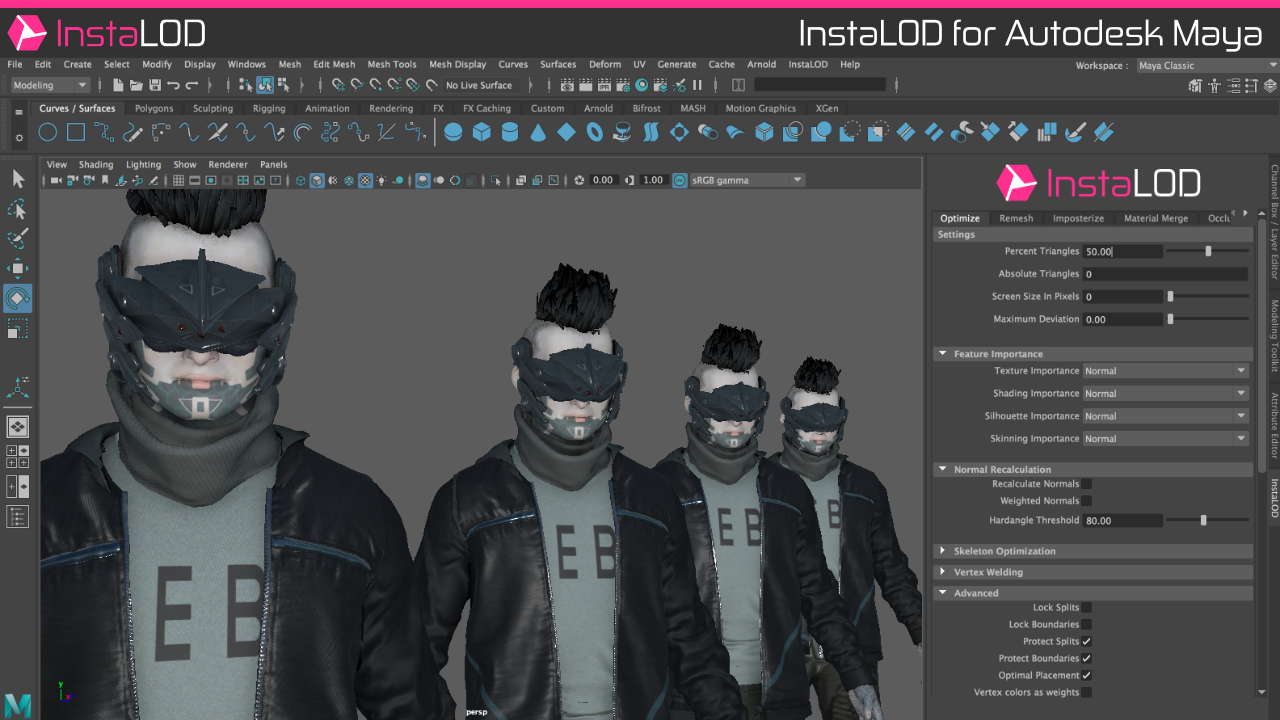
InstaLOD SDK 2 introduces a new feature called 'Global Optimization'.
Optimizing multiple meshes in a single operation with global optimization enabled allows the optimizer to consider all input
meshes when executing the operation. This results in the lowest visual deviation for the input meshes as a whole.
Global optimization is enabled by default, but can be disabled by unchecking the checkbox in the Advanced Settings found on the Optimize-tab.
Optimizing multiple meshes works identical to the optimization of a single mesh.
Select all meshes to be optimized in the viewport or hierarchy, enter the optimization target value and click the Optimize Selected Meshes button to optimize all currently selected and visible meshes.

By right-clicking on the mesh operation execution button and selecting Save as Batch-Profile... the current mesh operation settings will be saved as batch profile inside the directory of your InstaLODCmd installation. On the Batch-tab one saved profiles can be selected and executed on the current mesh selection in parallel. This is a great way to create a complete LOD chain with a single click.
To delete a saved batch profile open the Batch-tab. Right click on the Execute Batch button and select Delete selected Batch Profiles to delete all selected profiles.
To export a profile that can be used with InstaLODCmd without modification. Configure your mesh operation and right click the mesh operation execution button and select Export as InstaLODCmd Profile....
Another great feature of InstaLOD for Autodesk Maya is the ability to create and export multi operation batch profiles for InstaLODCmd.
To export a multi operation batch profile open then Batch-tab and select all saved batch profiles that will be included in the multi operation.
Right click the Execute Batch button and select Export as InstaLODCmd Profile... to export the profile for InstaLODCmd.
Profiles exported with InstaLOD for Autodesk Maya have a hard-coded profile name of Maya. When queuing files with InstaLODCmd the profile needs to be specified:
InstaLODCmd -profile ExportedWithMaya.json -file Data/SM_Zetsuda_130k.fbx Build/SM_Zetsuda_Optimize.fbx Maya
InstaLOD for Autodesk Maya can be scripted using both Python and MEL. The integration's callback system enables developers to prepare texture and geometry data before submitting it to InstaLOD for optimization. One such example would be custom materials that are flattened and converted to layered lambert materials during the pre-optimization callback and converted back into a custom material in the post-optimization callback.
InstaLOD for Autodesk Maya provides two callbacks that are invoked pre and post optimization for each object used in the operation:
| Callback Name | Argument 1 | Argument 2 |
|---|---|---|
instaLODWillExecute |
(string) operation type | (string) object name |
instaLODDidExecute |
(string) operation type | (string) object name |
The
instaLODWillExecutecallback will be invoked during an undo chunk, so it is recommended to only perform operations on the object that fully support undo. Once control returns back to Maya the undo chunk will be rolled back and the object will be reverted to it's original state before running the optimization.
When using InstaLOD for Maya via Script (MEL or Python) it is necessary to invoke the MEL function InstaLOD_InitializeGlobals() prior to using
any of the optimization functionality.
InstaLOD for Autodesk Maya saves all settings that are relevant to building optimization profiles in option vars.
The option vars used by InstaLOD for Autodesk Maya are listed in the InstaLOD_InitializeGlobals() method.
The naming convention for option vars is INSTALOD_ID_[type]_[field] where [type] is the mesh operation type and field is a corresponding settings field e.g. INSTALOD_ID_OP_PERCENTTRIANGLES.
The [field] names are matching the names of variables defined in the InstaLOD C++ SDK.
InstaLOD_InitializeGlobals()
Initializes the integration.
int InstaLOD_IsCurrentInstaLODCmdPathValid()
Determines if the current InstaLODCmdPath is valid.
string InstaLOD_GetLicenseInfo()
Returns a string containing InstaLOD license information. This method requires the InstaLODCmd path to be setup. This method is not supported on Autodesk Maya LT.
InstaLOD_ResetSettings(int $respawnUI)
Resets all settings to default values. Set $respawnUI to true to automatically recreate the InstaLOD user interface.
int InstaLOD_OptimizeMesh(string $mesh, string $profile, int $allowAsync)
Optimizes the specified $mesh. Optionally, a $profile file path can be specified to load a json profile from the disk.
If no $profile is specified, a profile will be built from the option vars.
int InstaLOD_OptimizeMeshes(string[] $meshes, string $profile, int $allowAsync)
Optimizes the specified $meshes. Optionally, a $profile file path can be specified to load a json profile from the disk.
If no $profile is specified, a profile will be built from the option vars.
Before an optimization can be started via script. The InstaLOD option vars need to be setup to match the desired operation.
The following MEL example sets the mesh operation type to Optimize and optimizes a mesh with the name pSphere1 to 50% triangles.
InstaLOD_ResetSettings(false);
optionVar("-stringValue", "INSTALOD_ID_OPTIMIZE_TYPE", "Optimize");
optionVar("-stringValue", "INSTALOD_ID_OP_PERCENTTRIANGLES", "50.0");
InstaLOD_OptimizeMesh("pSphere1", "", false);
InstaLOD for Autodesk Maya does not provide a native Python API.
However, invoking the MEL API from Python works as a quality workaround.
The following Python example sets the mesh operation type to Optimize and optimizes two meshes with the name pSphere1 and pSphere2 to 50% triangles.
# querying an optionVar
maya.cmds.optionVar( q='INSTALOD_ID_OP_PERCENTTRIANGLES' );

# reset all settings to their defaults
maya.mel.eval("InstaLOD_ResetSettings(false);");

# setting an optionVar
# set mode to "Optimize"
maya.cmds.optionVar( sv=('INSTALOD_ID_OPTIMIZE_TYPE', "Optimize") );
# set Optimize settings
maya.cmds.optionVar( fv=('INSTALOD_ID_OP_PERCENTTRIANGLES', 50.0) );
# execute optimization on object (without async)
# maya.mel.eval("InstaLOD_OptimizeMesh(\"pSphere1\", \"\", false);");

# execute optimization on multiple objects (without async)
maya.mel.eval("InstaLOD_OptimizeMeshes({\"pSphere1\", \"pSphere2\"}, \"\", false);");
Pre- and post-optimization callbacks can be subscribed by invoking Maya's native Python callback API.
There are currently no known limitations.
Please visit http://www.InstaLOD.io to stay up to date!
Thank you for using InstaLOD.